Devices and browsers
LIMSOC runs in a web browser, so there's nothing to install. Use an up-to-date version of Chrome, Safari or Edge.
Patrols and Reporting work best on a tablet, laptop or the club computer.
Field is designed for your phone.
Tip: add LIMSOC to your phone's home screen (Safari: Share → Add to Home Screen; Chrome: ⋮ → Add to Home screen) so it opens like an app.
Practise on the training site
There's a separate training LIMSOC for learning and practice. Nothing you do there affects real patrols or incidents. Ask your club or trainer for the training site's address before your first patrol, and always check which site you're on before recording real activity.
Your profile menu
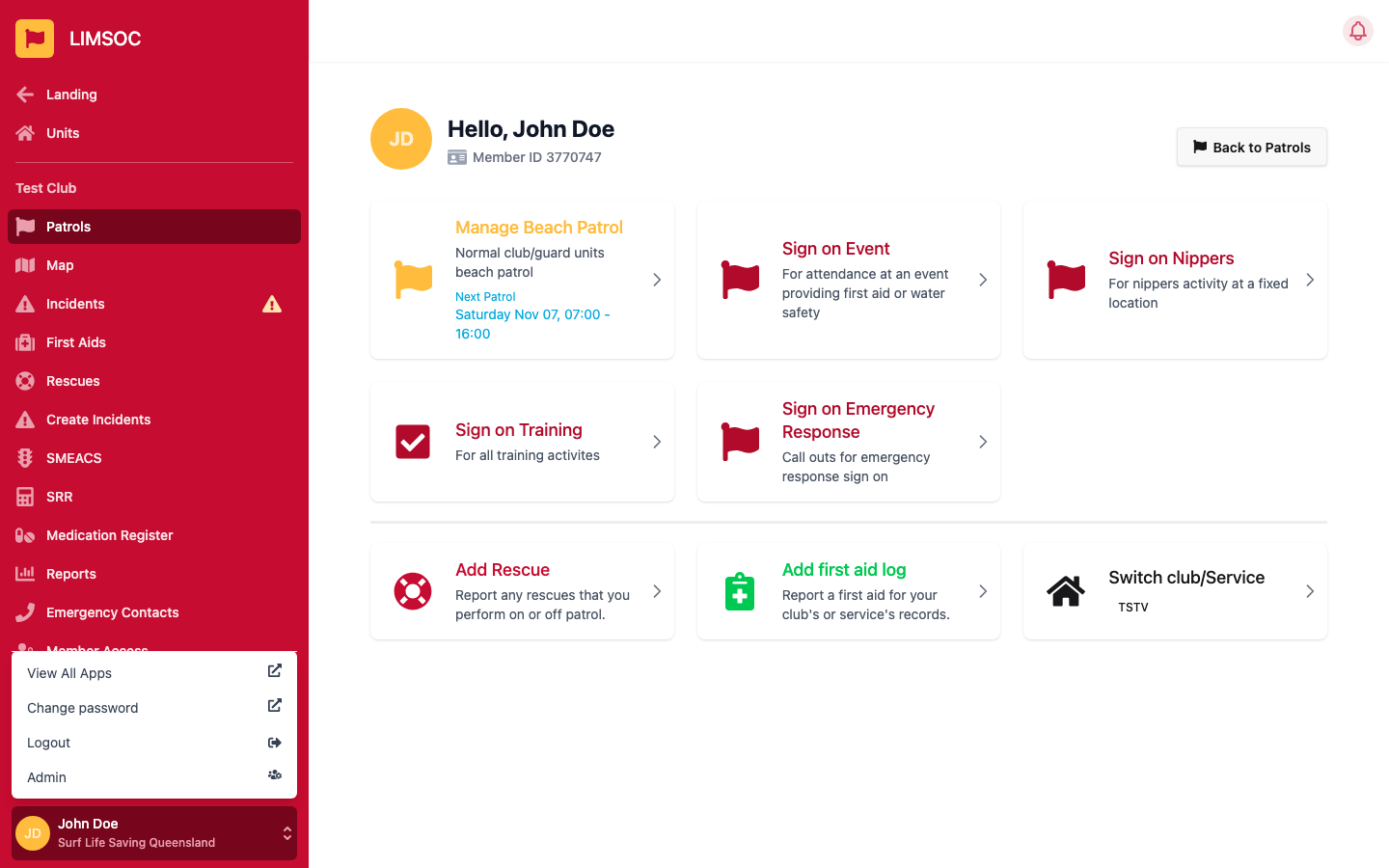
Your name and organisation are shown at the bottom of the side menu. Tap them to open your profile menu:
View All Apps: opens the Surf Life Saving clubs portal with your other apps.
Change password: opens the page where you change your SLSA Member password, which is also your LIMSOC password.
Logout: signs you out of LIMSOC.
Admin: system administration (administrators only).
Your name, email and mobile come from your SLSA membership record and refresh each time you sign in. To change them, update your SLSA membership details.
Signing out on a shared device
If you use a club computer or tablet, always Logout at the end of your patrol so the next person doesn't record activity under your name. Signing out of LIMSOC is different from signing off your patrol: sign the patrol off first, then log out.