
Peer Support Officers (PSOs) use the Field view to record their follow-up with members after an incident. Each contact is saved as a form against the incident. In the app it's called the Welfare Form.
Before you start
Sign on as your Peer Support unit in the Field view (see Signing On a Field Unit). Only units set up as peer support units can complete these forms. If you're a PSO and can't add one, ask your administrator to check your unit.
1. Open the incident
Go to the Incidents tab and tap the incident number. If the incident still needs a form, a purple Welfare Form required banner shows at the top.
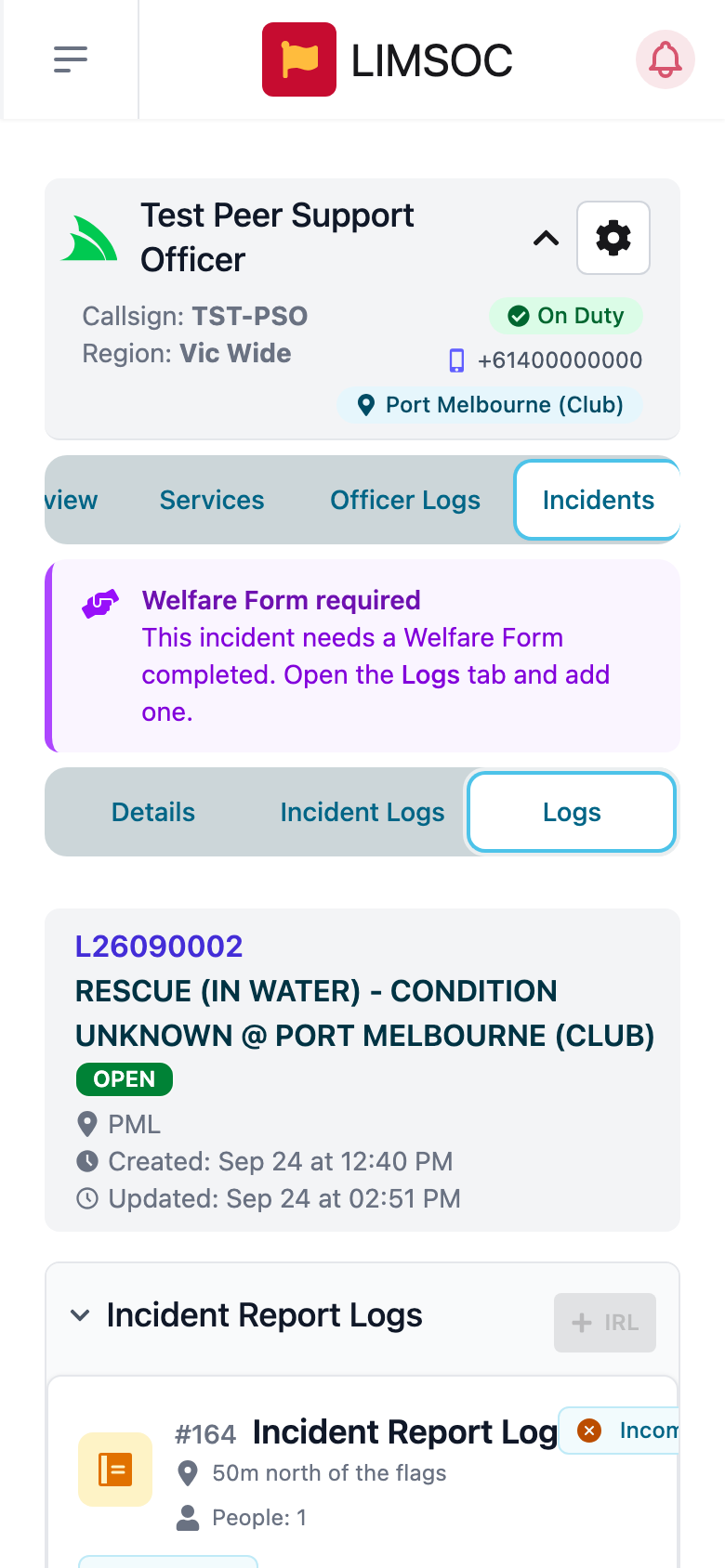
As a PSO you see the rest of the incident read-only. You can't report status, message Surfcom from the incident, or add IRLs, first aids or rescues. Your role here is the peer support form.
2. Add a form
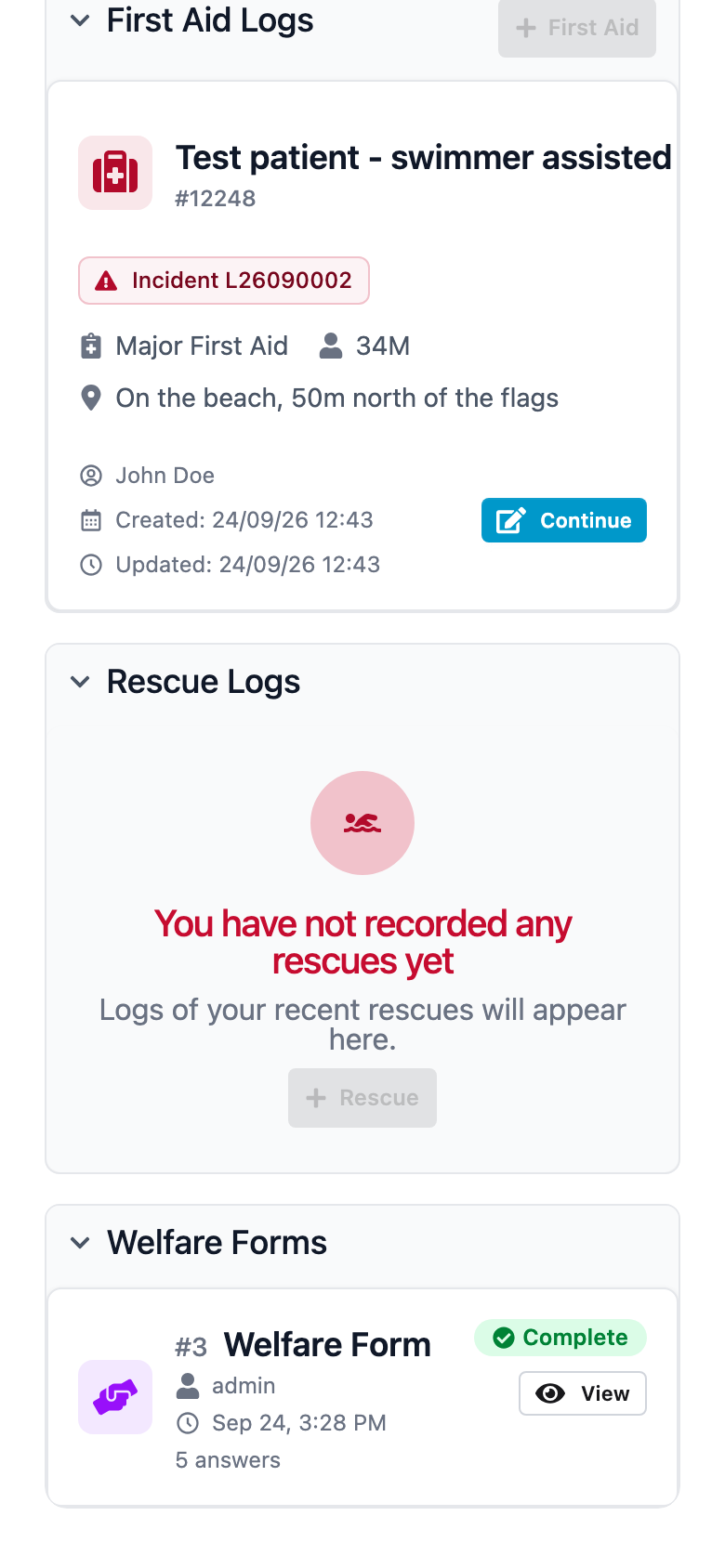
Open the incident's Logs tab, scroll to Welfare Forms and tap + Welfare.
3. Answer the questions
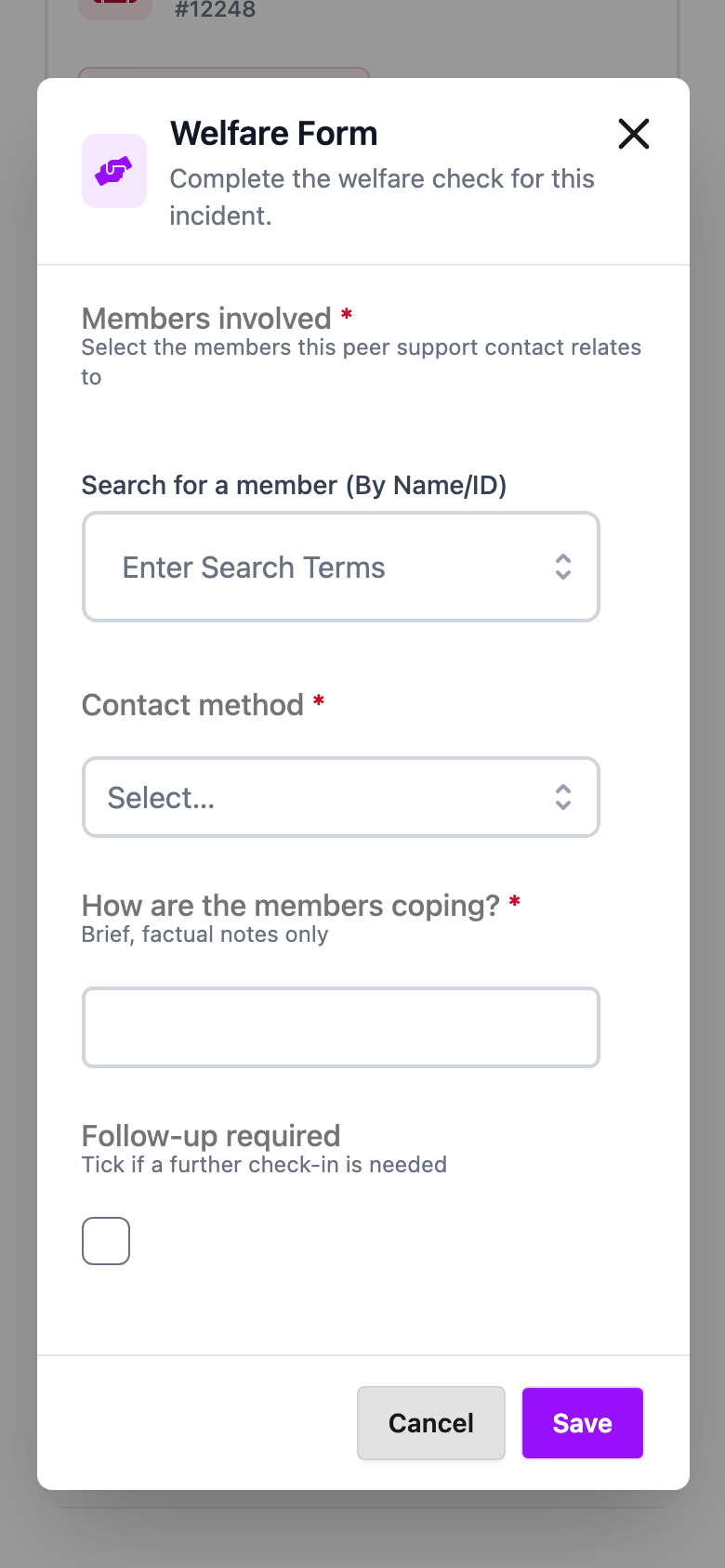
The questions are set by your organisation, so yours may differ from the example. Required questions are marked with a red *. Question types include:
Members: search by name or 7-digit member ID and tap the member to add them. Add as many as you need, and tap Remove to take one off.
Dropdowns and multi-select lists, text boxes, numbers, and tick boxes.
Keep answers brief and factual. Record what's needed for follow-up, not a detailed account of personal conversations.
4. Save
Tap Save. The form is saved as Complete and appears under Welfare Forms with who completed it, when, and how many answers it has. There's no draft option, so have your answers ready before you save.
Follow-up contacts
You can add more than one form to an incident. Add a new one each time you make another contact or circumstances change. Earlier forms stay as history. Tap View on any form to read its answers.