Signing on tells Surfcom that you're working as this unit, where you are, how to reach you, and which radio to track.
1. Start sign on
Choose your unit from the unit list, then tap Sign on service.
2. Fill in the form
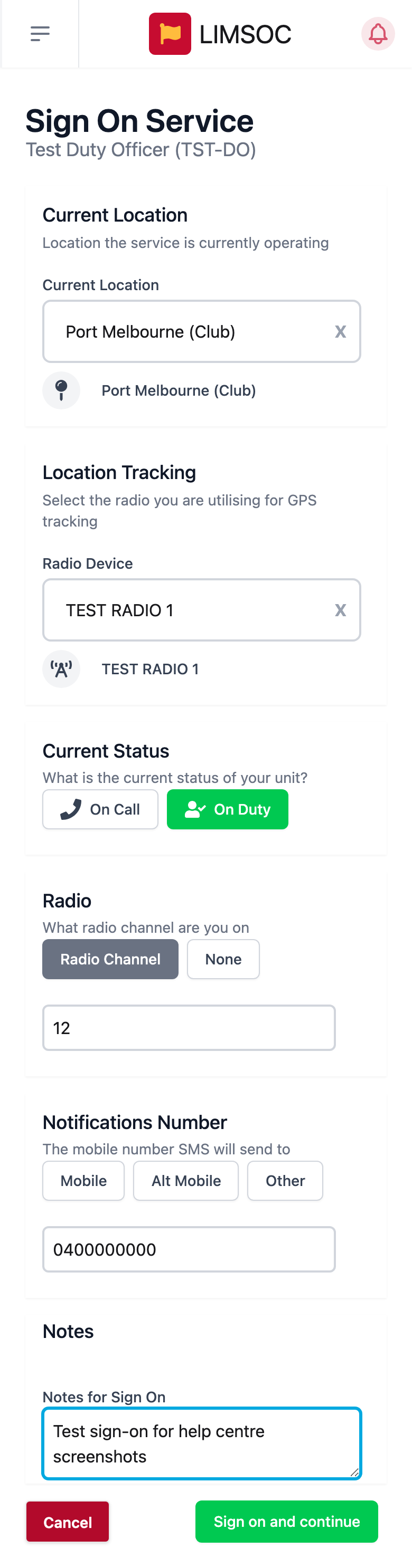
Current Location: start typing (at least 3 letters) and pick where you're operating. If it isn't listed, choose OTHER and type it in.
Radio Device (under Location Tracking): search for the radio you're carrying. Your unit's position on Surfcom's map comes from this radio's GPS, not your phone, so pick the right one.
Current Status: On Duty if you're actively working, or On Call if you're available to be called out.
Radio: choose Radio Channel and enter the channel you're monitoring, or None.
Notifications Number: the mobile Surfcom's SMS alerts go to. Choose Mobile or Alt Mobile from your profile, or Other to type a number (starting 0 or +61).
Notes: anything Surfcom should know.
3. Sign on
Tap Sign on and continue. You'll land on your unit screen, Surfcom will see you as signed on, and your radio's position will start showing against your unit. See Your Field Unit Screen.
Good to know
Some admin or support roles are set up as read only. You'll see a warning that it's an admin support unit, there's no radio section, and you can only choose On Call. If you're doing operational work, sign on an operational unit as well.
If you see This unit is already signed on, someone else took it first. Use Handover instead.