Once you've signed on, the unit screen is your home base in the field.
The unit card
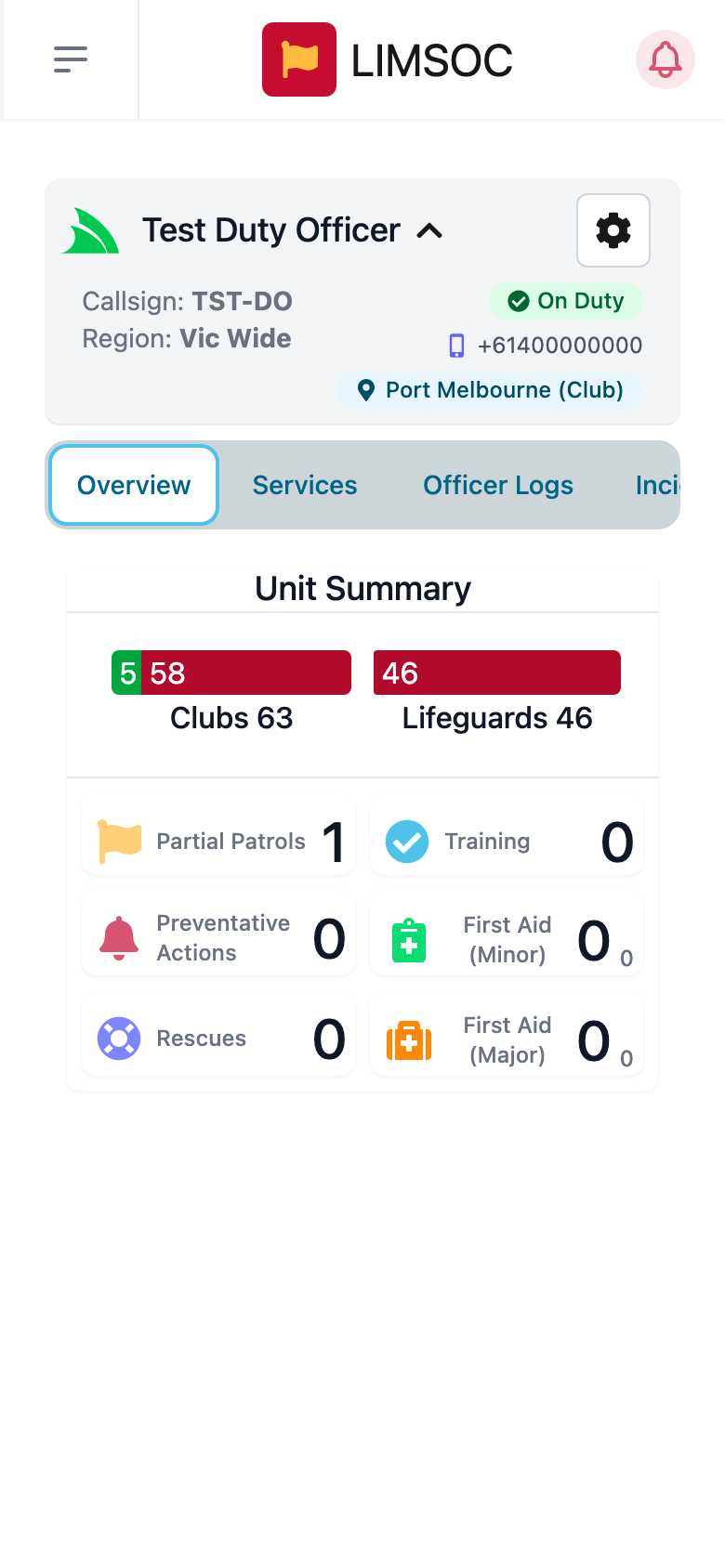
The card at the top shows your unit's name, Callsign and Region, your status (On Duty or On Call), the number SMS notifications go to, and your current location. Tap the card's name to collapse or expand it. The cog button opens Update and Sign Off.
The tabs
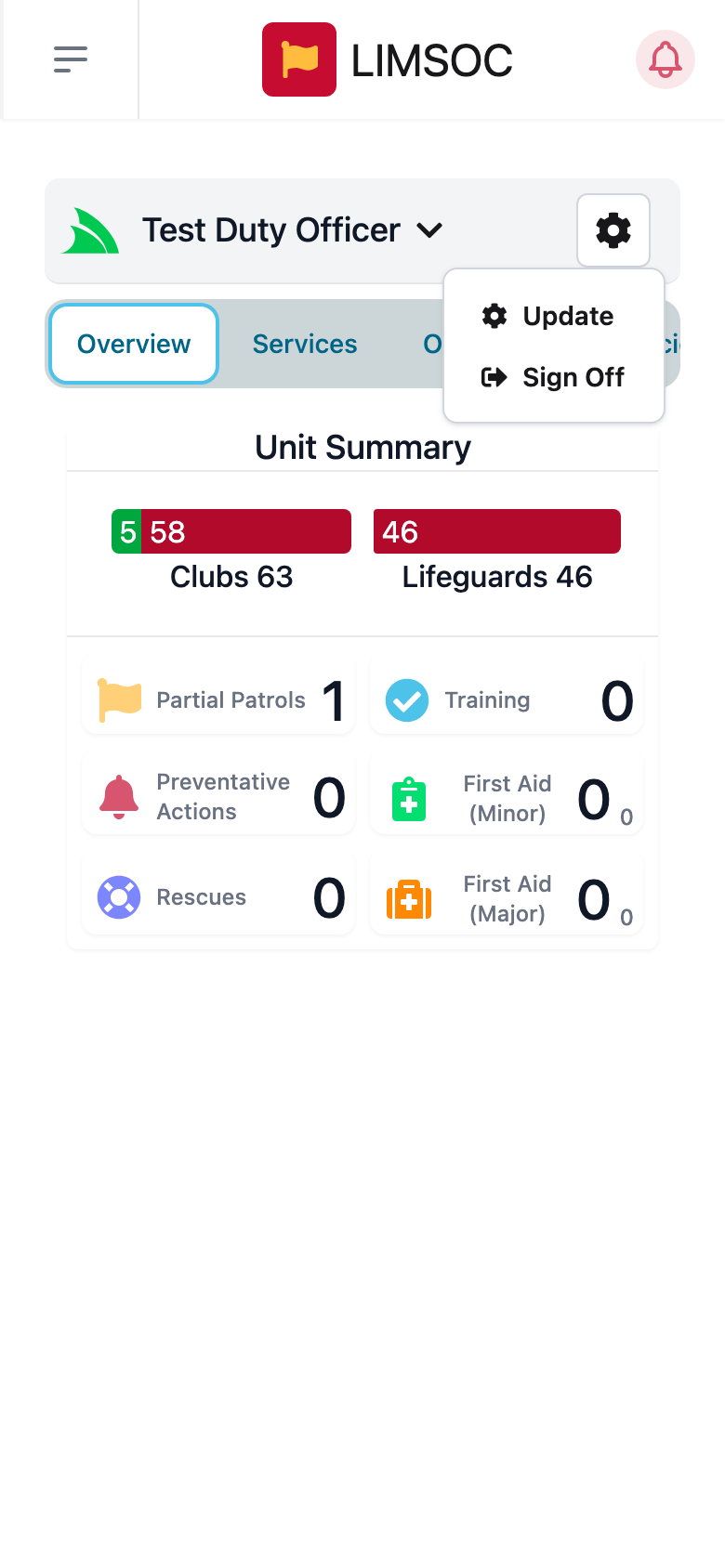
Swipe the tab bar sideways to see them all. Which tabs appear depends on how your unit type is set up.
Overview: a Unit Summary for your region. It shows how many clubs and lifeguard services are on patrol (green) or off (red), with today's partial patrols, training, preventative actions, rescues, and minor and major first aids. The small number beside a first aid count is how many are still incomplete. Tap a first aid tile for the list.
Services: every unit in your area with its status (beach open or closed, powercraft, who's signed on). Search by name, filter by Category or Unit Type, or tick Show Online Only. Tap a unit for its contact details.
Officer Logs: your unit's running duty log. See Keeping Officer Logs.
Incidents: incidents in your region, and any you're attached to. See Responding to Incidents in the Field.
Map: incidents, fixed services (online and offline), mobile services and points of interest, which you can switch on and off. Tap an incident to open it.
SRR: Surf Risk Ratings for your unit. See Completing a Surf Risk Rating in the Field.
The menu
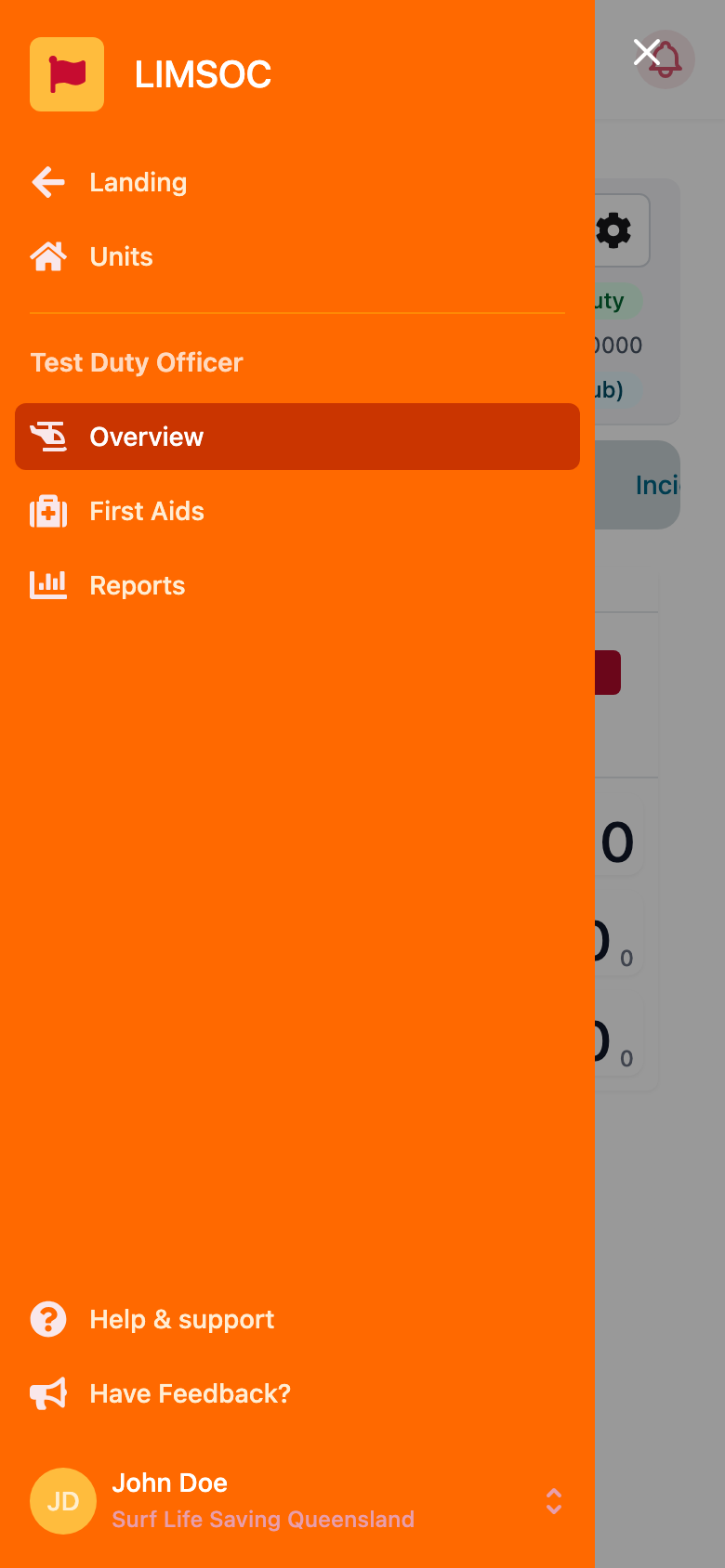
Tap ☰ (top-left) for the orange menu: Landing, Units (switch unit), Overview (back to this screen), First Aids, Reports (unit admins), Medication Register (if enabled for you) and Have Feedback?.