
The Field view is LIMSOC's phone-friendly interface for officers, supervisors, duty officers and other mobile roles. You pick the role (unit) you're working as, sign it on, and then respond to incidents and keep logs from wherever you are.
1. Open the Field view
On the LIMSOC landing page, tap the Field tile ("Field view for mobile officers") and then Go. If you don't see the Field tile, you haven't been given Field view access. Ask your administrator.
2. Choose your unit
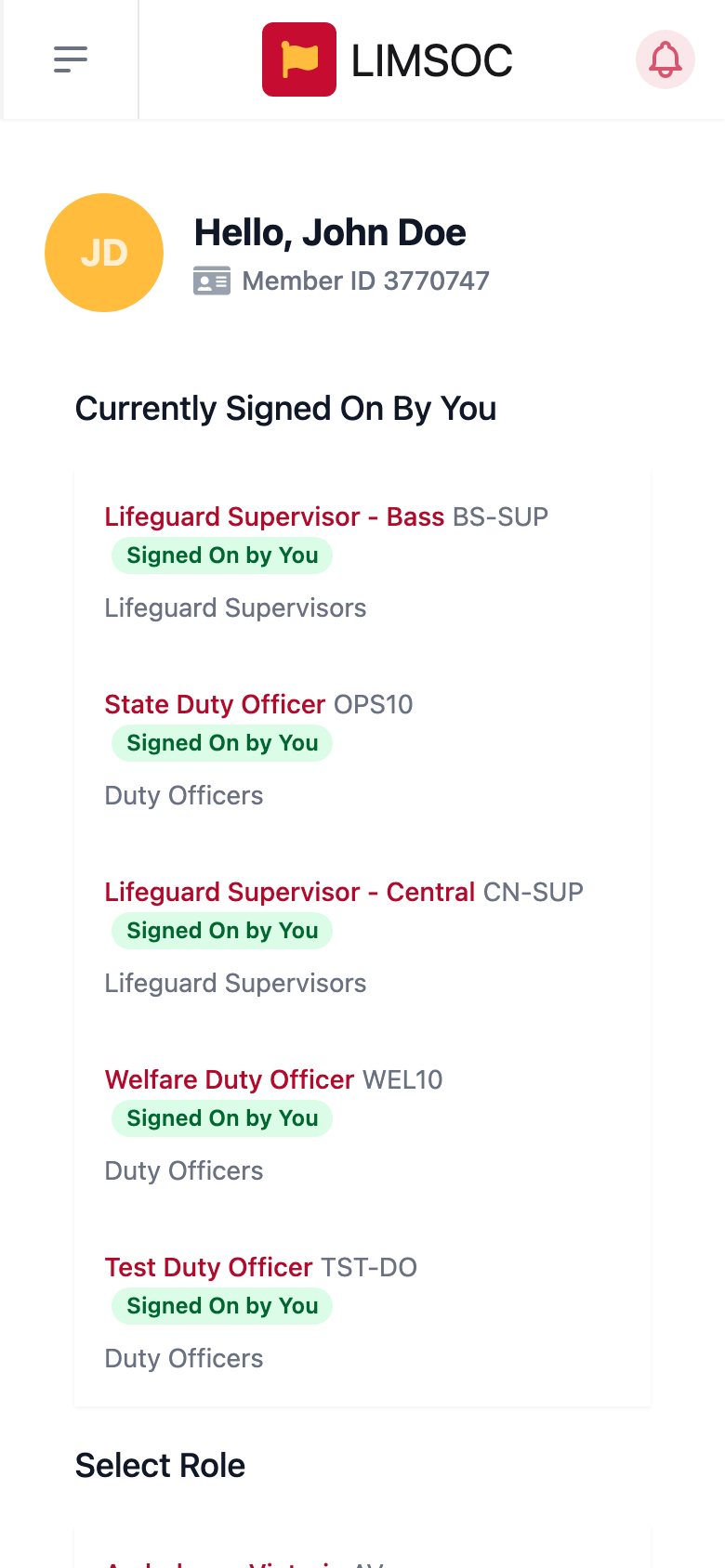
The first screen greets you by name and lists the officer units available to you:
Currently Signed On By You: units you already hold, marked Signed On by You.
Select Role: every other unit. Each shows either Signed Off (free to sign on) or Signed On by someone else.
Each row shows the unit's name, its callsign and its unit type. Tap a unit to open it.
3. What you'll see next
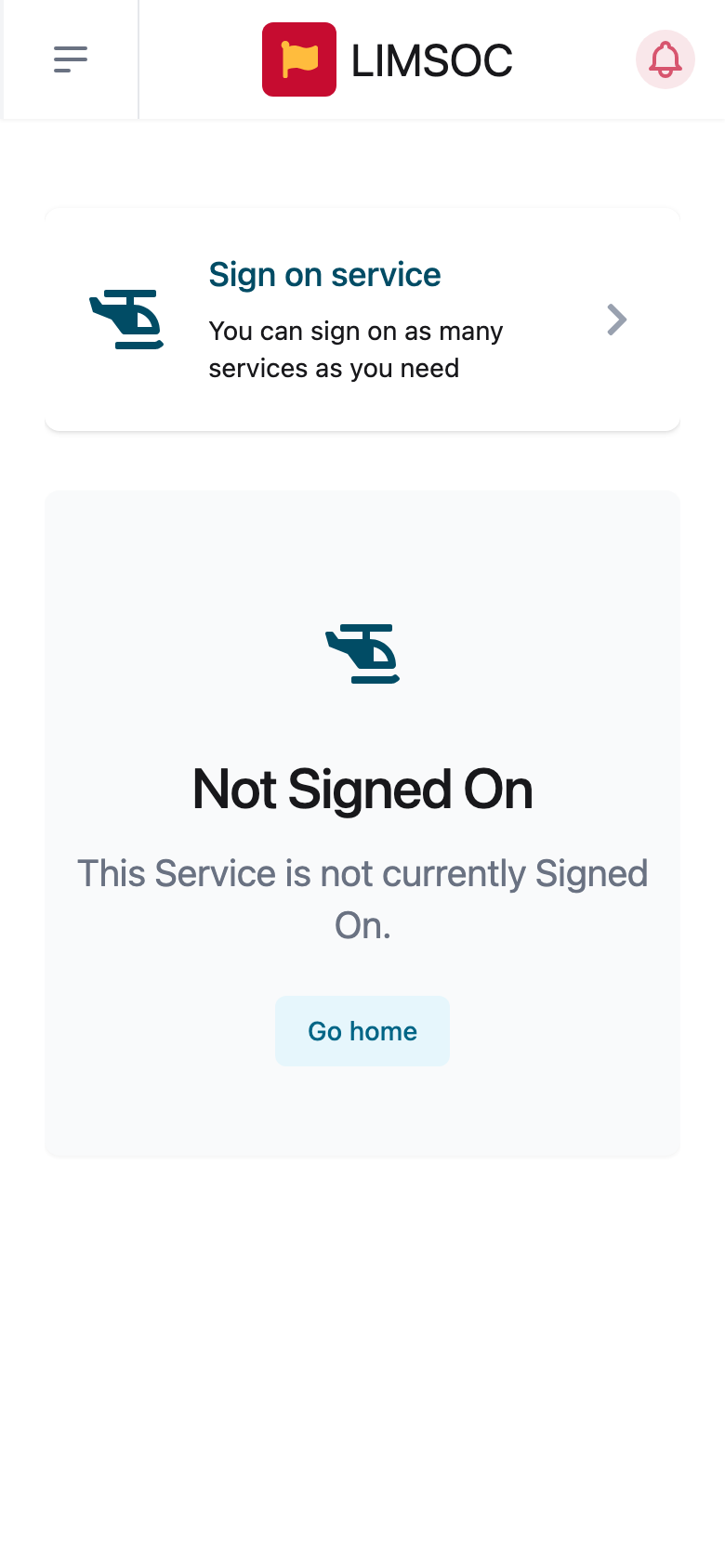
Not Signed On: tap Sign on service to start. See Signing On a Field Unit.
Service Signed on By Another User: someone else holds this unit. Tap Handover Service to take it over, or Go home to pick another. See Updating, Handing Over and Signing Off a Field Unit.
If you already hold it, the unit screen opens straight away.
Good to know
Only one person holds a field unit at a time. There's no crew list; the person signed on is responsible for it.
You can hold several units at once, for example a supervisor role and a duty officer role. Switch between them with Units in the menu (☰, top-left).
The units you see depend on the organisations you have Field access in. If a unit you need is missing, ask your administrator.