
When you need a single record to print, attach to an email or file away, you can download it as a formatted PDF. PDFs open in a new browser tab, where you can save or print them.
Where to find each PDF
An incident: Reports → Incident Report, generate, click the incident number, then Download Report at the top of the detail page.
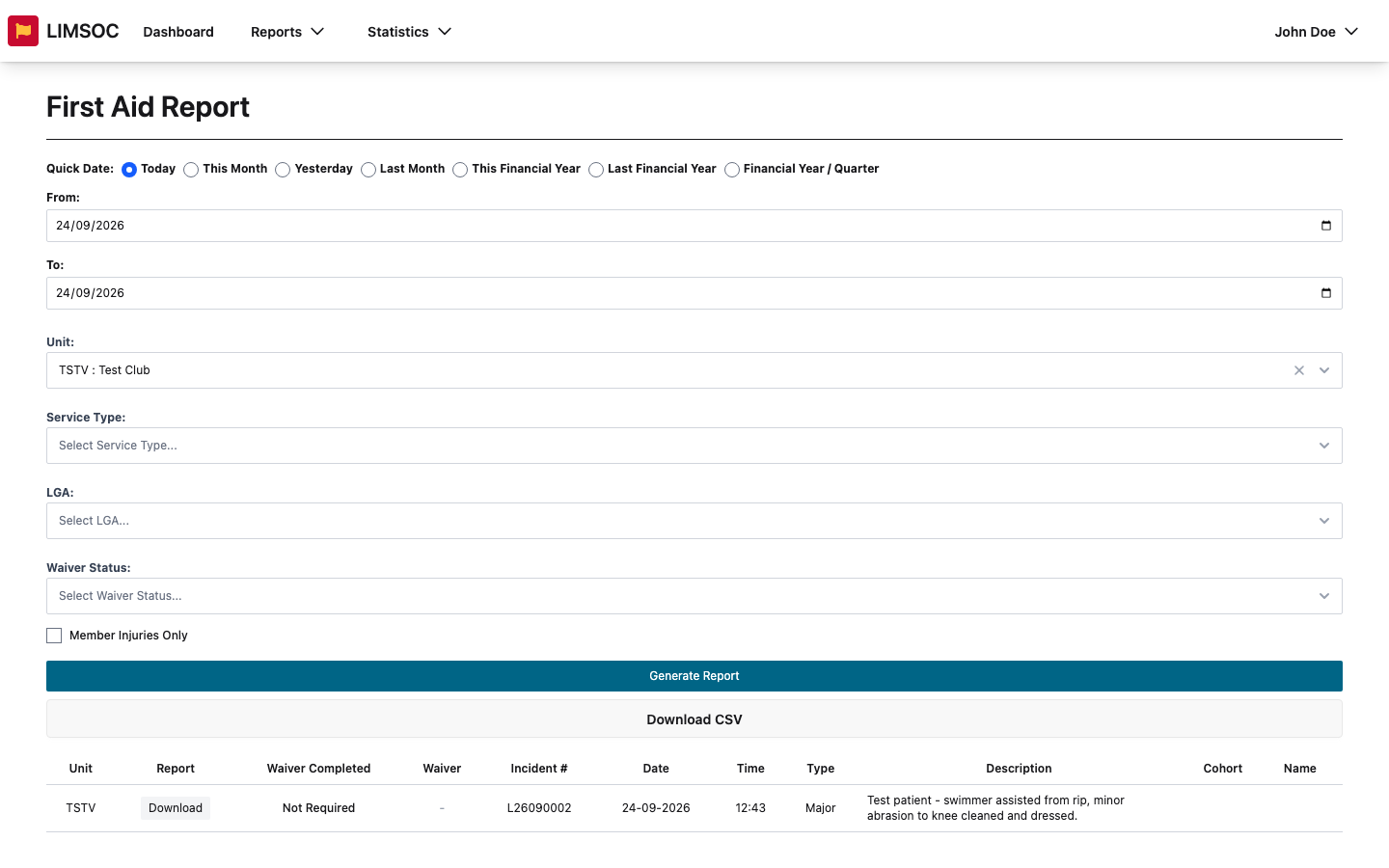
A first aid log: Reports → First Aid Report, generate, then Download in the Report column. You can also use the First Aid Logs section of an incident's detail page.
A methoxyflurane waiver: in the First Aid Report, click Download in the Waiver column. It only appears when Waiver Completed is Yes.
An IRL: Reports → Incident Report Logs, generate, then Download in the Report column.
A rescue: Statistics → Rescue Summary, generate, then Download in the Report column.
Unit totals: Reports → Club/Guard Summary Report, generate, then Download PDF (Totals) for everything, or a unit's PDF button for just that unit.
If a PDF won't download
No Download button, or an empty Report column, means you don't have export rights for that kind of record. Ask your administrator.
If nothing opens, check your browser isn't blocking pop-ups for LIMSOC. PDFs open in a new tab.
The incident button shows Generating... while the PDF is built. Larger incidents can take a few seconds.
PDFs contain the full record, including patient and caller details. Treat them as confidential.