The Member Log Report lists each member's logged time on patrol, as recorded on the Update Team screen, and whether it has been sent to SurfGuard. Use it to check patrol hours or chase logs that didn't sync.
Run the report
Go to Reports → Member Logs Report.
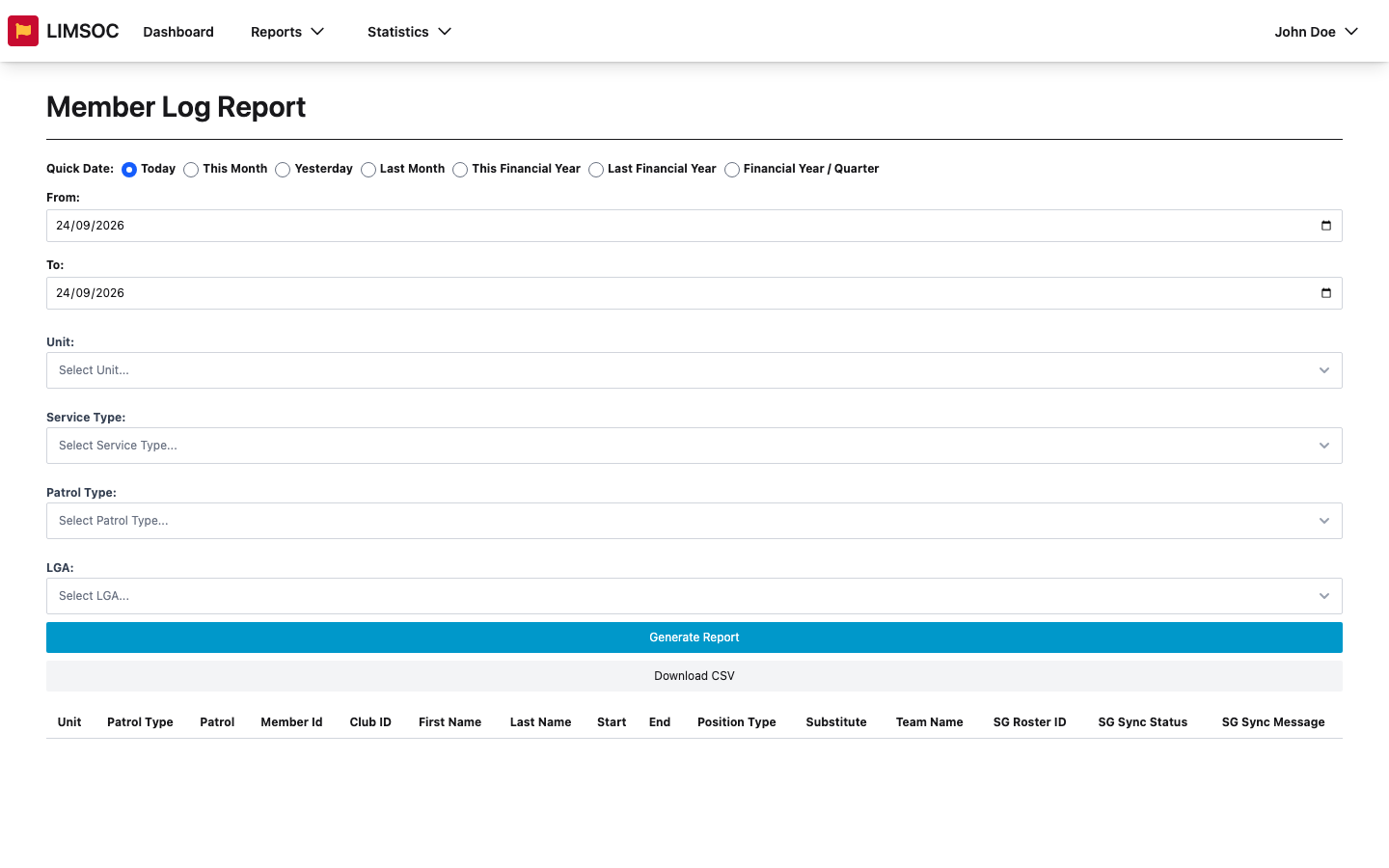
Choose a period and, ideally, a Unit. You can also filter by Service Type, Patrol Type or LGA.
Click Generate Report.
Each row shows the unit, patrol type and patrol, the member's ID, club ID and name, start and end times, position type, whether they were a substitute, and the team name. The last three columns show SurfGuard sync details: SG Roster ID, SG Sync Status and SG Sync Message. The message explains any failure.
Important: 100-row limit
This report returns at most the 100 most recent member logs, both on screen and in the CSV, and doesn't warn you when it stops. If you get exactly 100 rows, there's probably more. Narrow the period or pick a single unit and run it again, for example one week or one month at a time.
Download
Click Download CSV to save the rows as a spreadsheet (needs member log export rights). SurfGuard remains the official record of patrol hours. This report shows what LIMSOC captured and sent.