
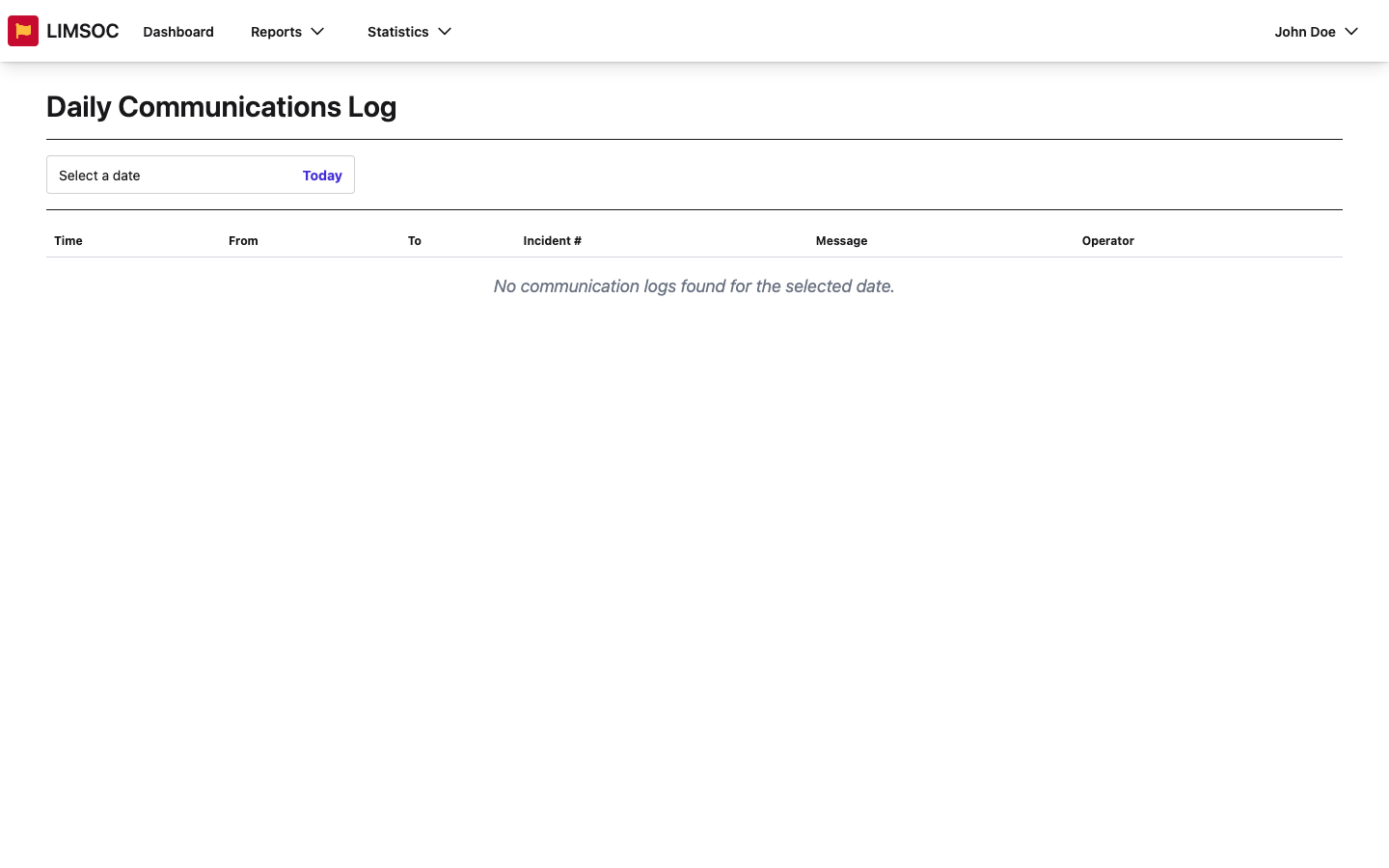
The Activity Log shows every radio and communications entry recorded on a given day: who called whom, the message, and any incident it relates to. It opens as the Daily Communications Log.
View a day's log
Go to Reports → Activity Log.
Click Select a date and pick a day from the calendar, or click Today.
The log loads straight away, with no Generate button. Click the ✕ next to the date to clear it.
Each entry shows the Time, From, To, Incident # (N/A if none), Message and Operator.
Good to know
It covers one day at a time and can't be downloaded. For an incident's own communications across several days, open the incident from the Incident Report and use its Incident Chronology, or download the incident PDF.
You need radio-log reporting rights. Without them you'll always see No communication logs found for the selected date.
The Operator column shows the operator's user number rather than their name.