
The Incident Report lists incidents for your chosen period and filters. From any row you can open the incident's full record, which pulls together its first aids, IRLs, rescues, response times and chronology.
1. Find incidents
Go to Reports → Incident Report. Either:
type an Incident Number (e.g. L20070000) to go straight to one incident. All other filters are ignored when you do this. Or:
choose a period and narrow it down with Incident Type, Category, Service Type, Area, LGA, Attended By (the unit), Incident Tags, or tick External Requests Only (13 Surf).
Click Generate Report. Incidents are listed newest first, with the location, coordinates, type, description, caller details, primary service, ambulance and member injury flags, and open and closed times. Only incidents after 19 November 2014 are available.
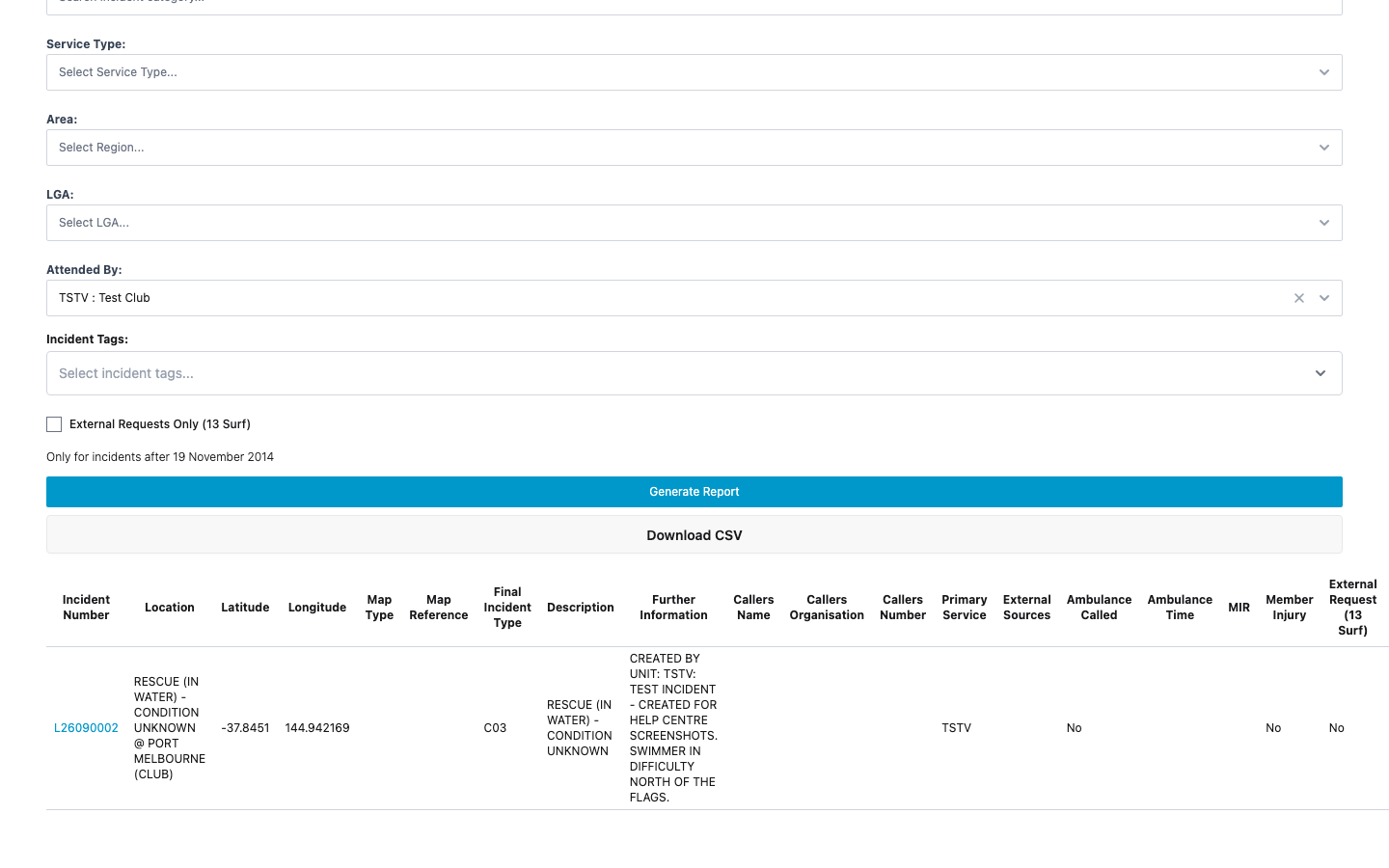
2. Open an incident
Click an Incident Number to open its detail page. It shows:
Incident Details, Incident Location (with a map) and Caller's Details
the linked Rescues, First Aid Logs and Incident Report Logs
Service Response Times: when each unit was notified, acknowledged, en route, arrived, stood down and cleared
Post-Incident Follow Up notes and the full Incident Chronology
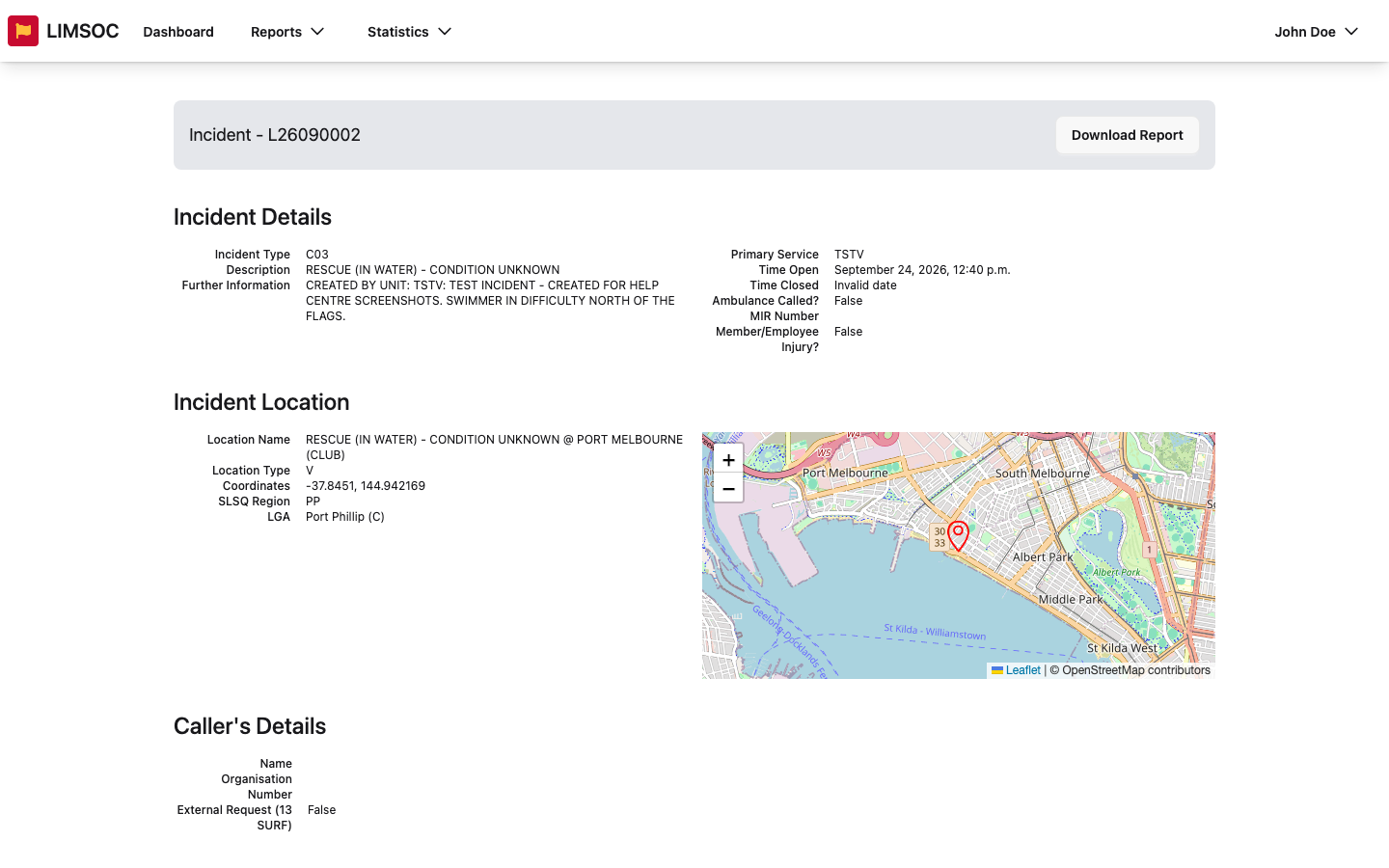
3. Download the incident PDF
Click Download Report at the top of the detail page. The PDF opens in a new tab. You can also download individual first aid logs from the First Aid Logs section. Both need export rights.
4. Add a follow-up
Under Post-Incident Follow Up, click Add Follow Up. Enter the Date and Time (leave Time blank to use the current time), write the Follow Up note and click Save Follow Up. Earlier notes are listed underneath under Previous Follow Up Messages.
Opening an incident's detail page is recorded in its audit trail.