
The Reports menu holds LIMSOC's detailed, row-by-row reports. They all work the same way, so once you've run one you can run them all.
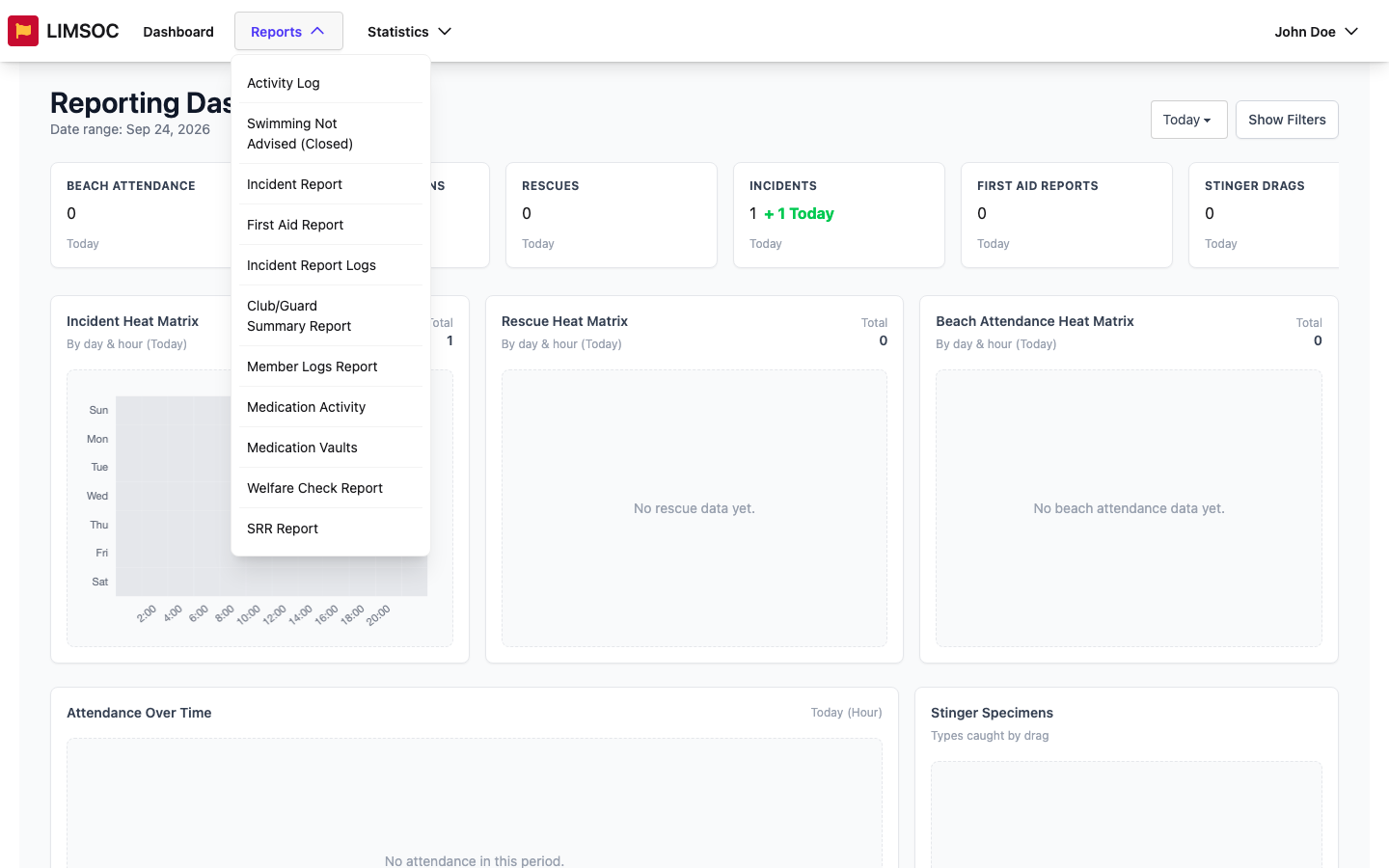
What's in the Reports menu
Activity Log: the day's radio and communications log.
Beach Closures (shown under your organisation's own name for closures): when and why beaches were closed.
Incident Report: incidents, with a full detail page for each.
First Aid Report and Incident Report Logs: first aid logs and IRLs.
Club/Guard Summary Report: activity totals per unit (see the Statistics collection).
Member Logs Report: who was on patrol and their SurfGuard sync status.
Medication Activity and Medication Vaults: only if your organisation uses the medication register.
SRR Report: Surf Risk Rating assessments.
The heading on some pages differs slightly from the menu name. For example, Activity Log opens Daily Communications Log, and Club/Guard Summary opens Unit Reporting.
1. Choose the period
Pick a Quick Date option or type your own From and To dates. See Choosing a Date Period.
2. Set any filters
Each report has dropdowns such as Unit, Service Type, Region or Area, and LGA. Type into a dropdown to search it. A blank dropdown means "all", and the x clears a choice.
3. Click Generate Report
Reports don't run until you click Generate Report. The results appear in a table underneath. If nothing matches, the table stays empty. Try a wider period or fewer filters.
4. Download if you need to
Use Download CSV for a spreadsheet of the results, or a row's Download button for a PDF. These buttons only appear if you have export rights for that report. See the Exporting Data articles.
Getting an empty report?
Every report only includes records for units you have reporting rights for. If a report is always empty even over a long period, you may not have rights for that kind of record. See Why You Might See Different Report Data.