
The dashboard's filter panel lets you focus on a club, a type of unit, an area or an LGA. It works a little differently from the filters on the other reports, so it's worth knowing how.
1. Open the filters
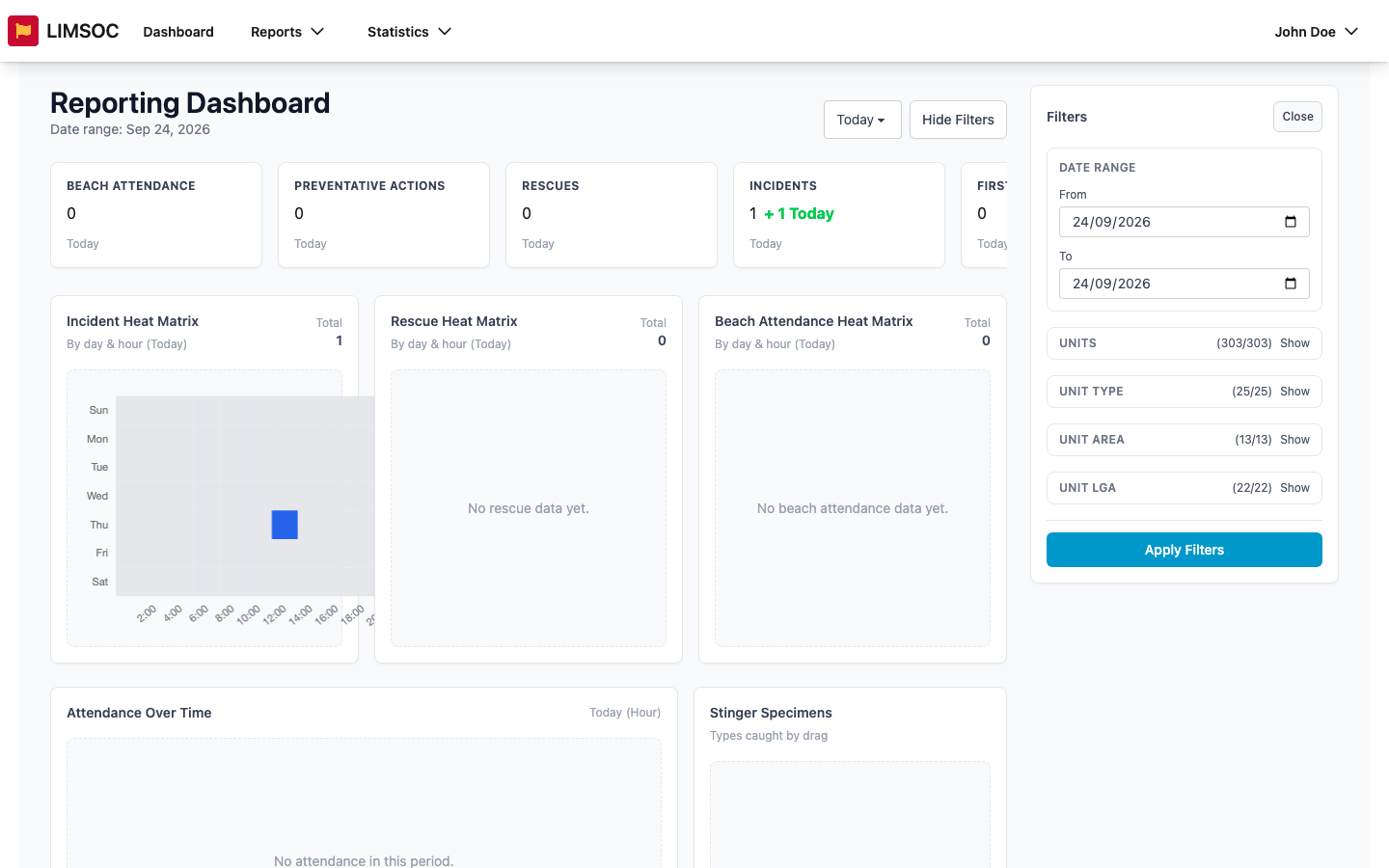
On the Reporting Dashboard, click Show Filters. The Filters panel opens on the right with a Date Range and four groups: Units, Unit Type, Unit Area and Unit LGA. Each group shows how many options are selected, for example (303/303).
2. Choose what to include
Click Show on a group to expand it. Use the search box to find options, tick or untick them, or use Select all and Clear all. Everything is selected when the dashboard first opens.
3. Apply
Nothing changes until you click Apply Filters. Click Close or Hide Filters to tuck the panel away.
How the groups combine
A unit is only counted if it matches your selection in every group. To look at one club, the simplest approach is to leave Unit Type, Unit Area and Unit LGA fully selected and pick just that club under Units.
If any group has nothing selected, the whole dashboard shows zero. This includes using Clear all on a group. Select at least one option in each group.
A unit with no area or LGA recorded against it can drop out of the results once you start narrowing those groups.
Filters on the other reports
The tabular reports use simple dropdowns instead (Unit, Service Type, Region or Area, LGA and so on). Leaving a dropdown blank means "all", and the x clears a choice. See Running an Operational Report.