
An Incident Report Log (IRL) records your patrol's side of an incident: what the problem was, how many people were involved, what your members did, and who responded. If an incident card shows Required: IRL, this is the form it's asking for.
1. Open the incident's documents
Go to Incidents in your unit's menu, find the incident and click View Documents.
2. Start a new IRL
Click + IRL. The Add Incident Report Log form opens, already linked to this incident.
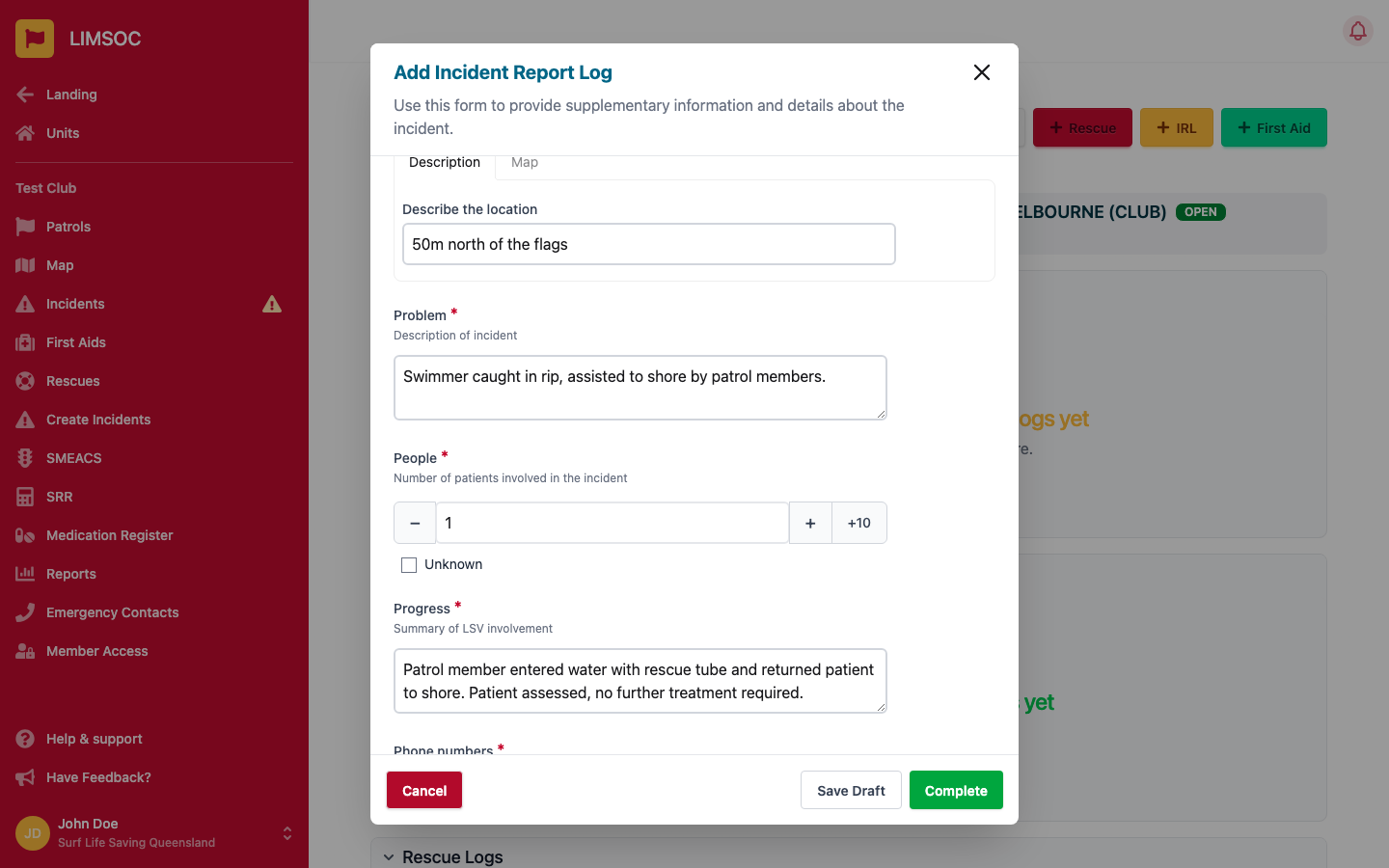
3. Fill in the details
Position: where the incident happened. Use the Description tab to describe it in words, or the Map tab to drop a pin (it starts at your unit's position).
Problem: a description of the incident.
People: the number of patients involved. Tick Unknown if you don't know.
Progress: a summary of what your members did.
Phone numbers: the name and phone number of each member who responded. Use + Add Member for more rows.
Record injured or treated patients separately with a First Aid Log, and any water rescues with a Rescue Log, from the same Documents screen.
4. Save Draft or Complete
Every field is required, so fill them all in before you click either Save Draft or Complete. Use Save Draft if you want to come back and refine it. The IRL shows as Incomplete, and you can reopen it with Edit. Click Complete once it's final.
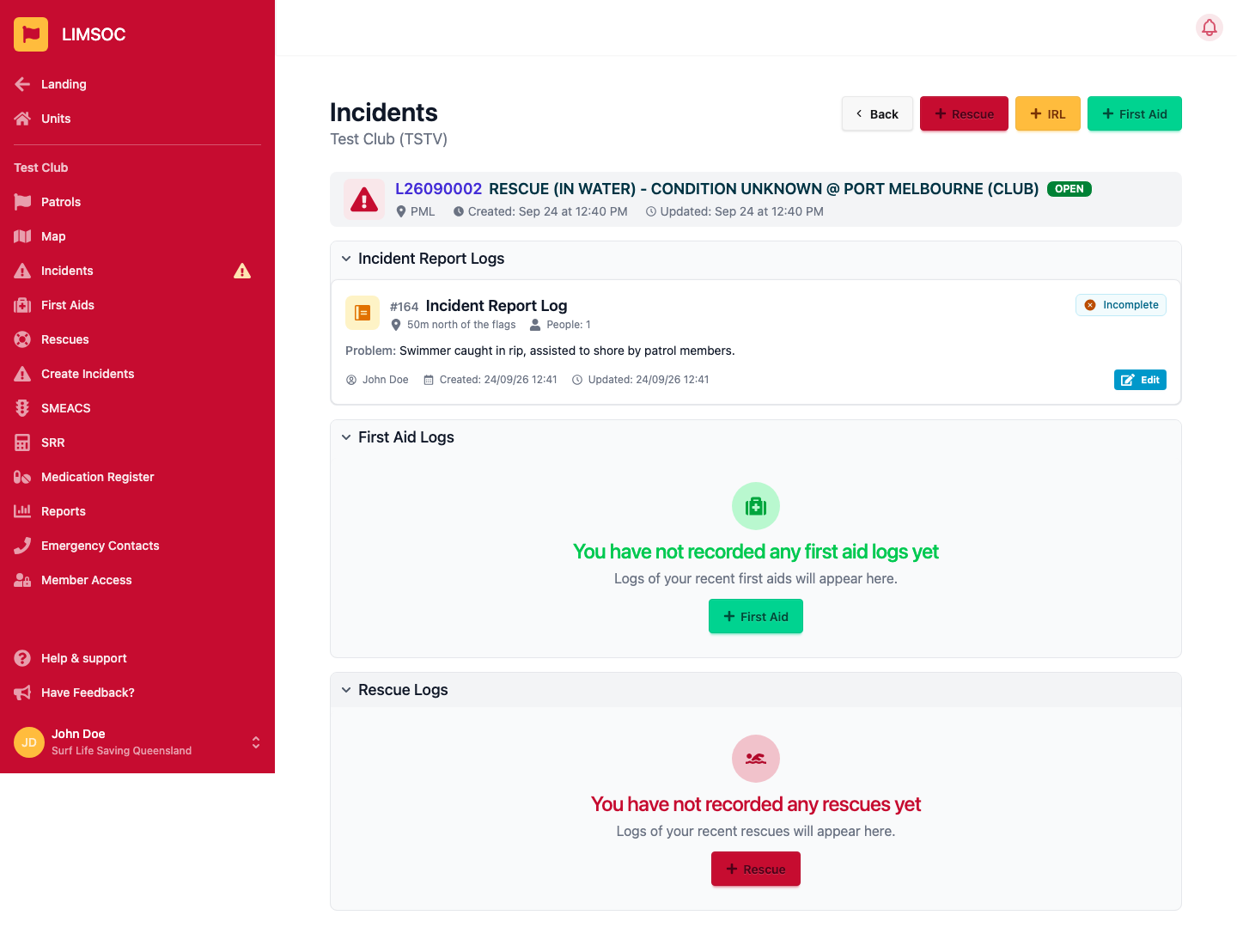
After it's complete
A completed IRL is locked and can only be opened with View. If it needs correcting, a user with permission can click Reopen and give a reason. The IRL then shows as Reopened so club members can edit and complete it again. If you can't see Reopen, contact Surfcom.