
When Surfcom links your patrol to an incident, it appears on your unit's Incidents screen. From there you can see what paperwork is still needed, add IRLs, first aids and rescues against the incident, and follow who's responding.
1. Open Incidents
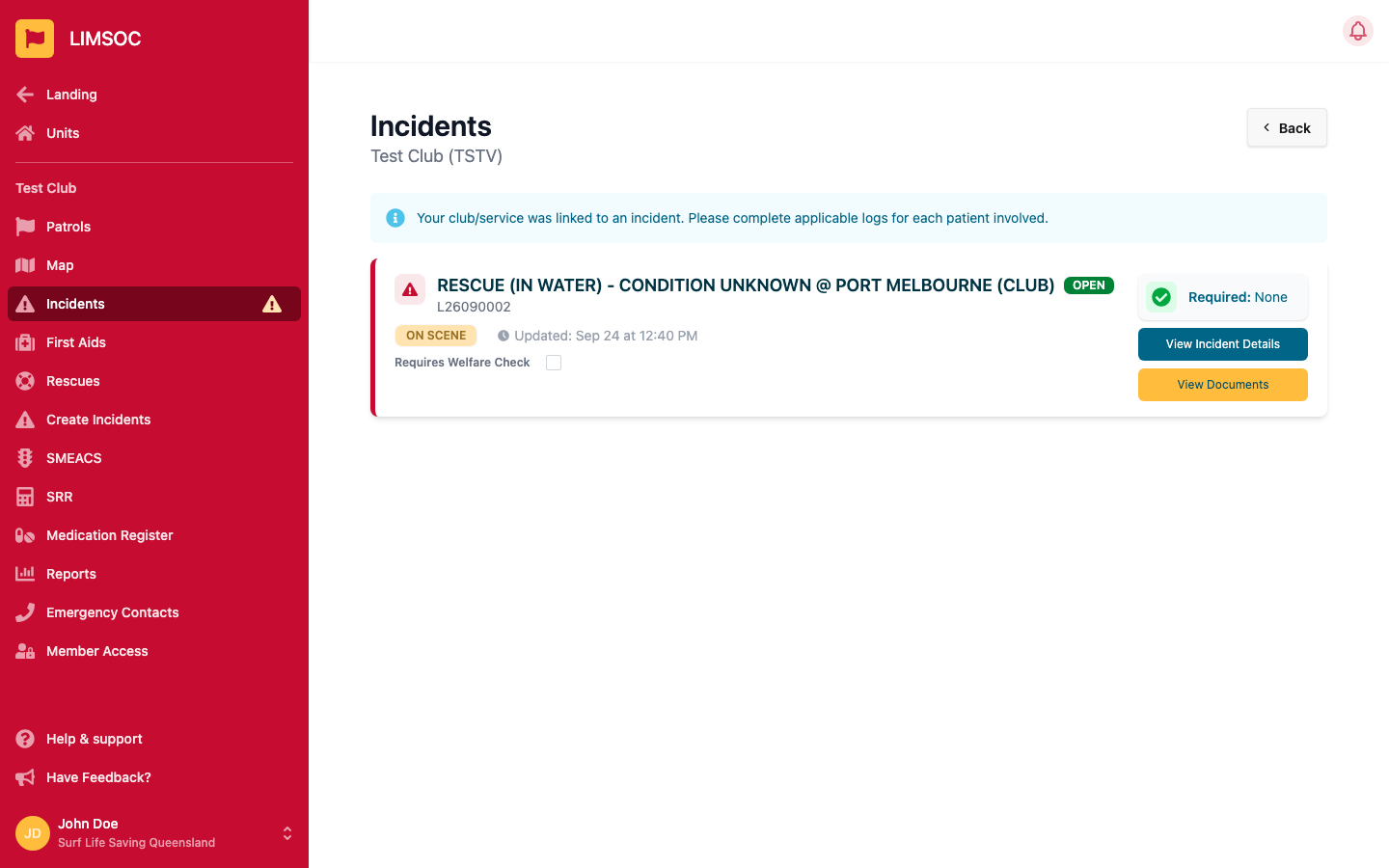
Select Incidents in your unit's menu. A yellow warning triangle next to it means your unit is currently linked to at least one incident. You may also see an orange IRL Required badge at the top of your patrol screen. Click it to jump straight here.
2. Read the incident card
Each incident your unit is linked to has its own card showing:
the location, incident number, and an OPEN or CLOSED badge
your unit's current status on the incident (e.g. ON SCENE) and when it last changed
a Required box listing the paperwork still outstanding (for example IRL or First Aid), or a green tick when nothing is needed
Please complete the applicable logs for each patient involved.
3. Add paperwork: View Documents
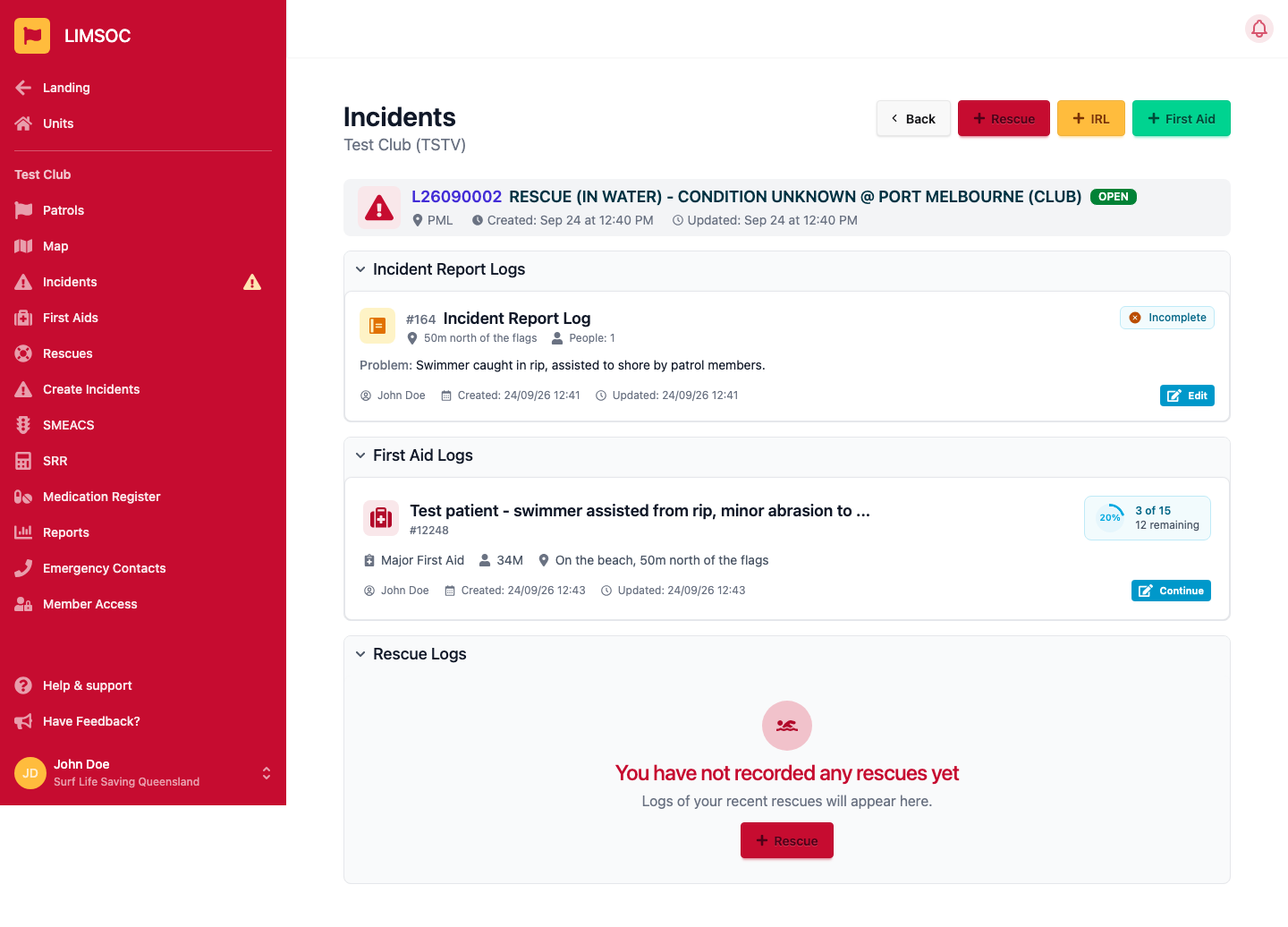
Click View Documents to see every Incident Report Log, First Aid Log and Rescue Log your unit has recorded against this incident. Use the + IRL, + First Aid and + Rescue buttons to add new ones. They'll be linked to the incident automatically. Click any section heading to collapse or expand it.
See Completing an Incident Report Log (IRL), Recording a First Aid and Recording a Rescue for how to fill each one in.
4. Follow the response: View Incident Details
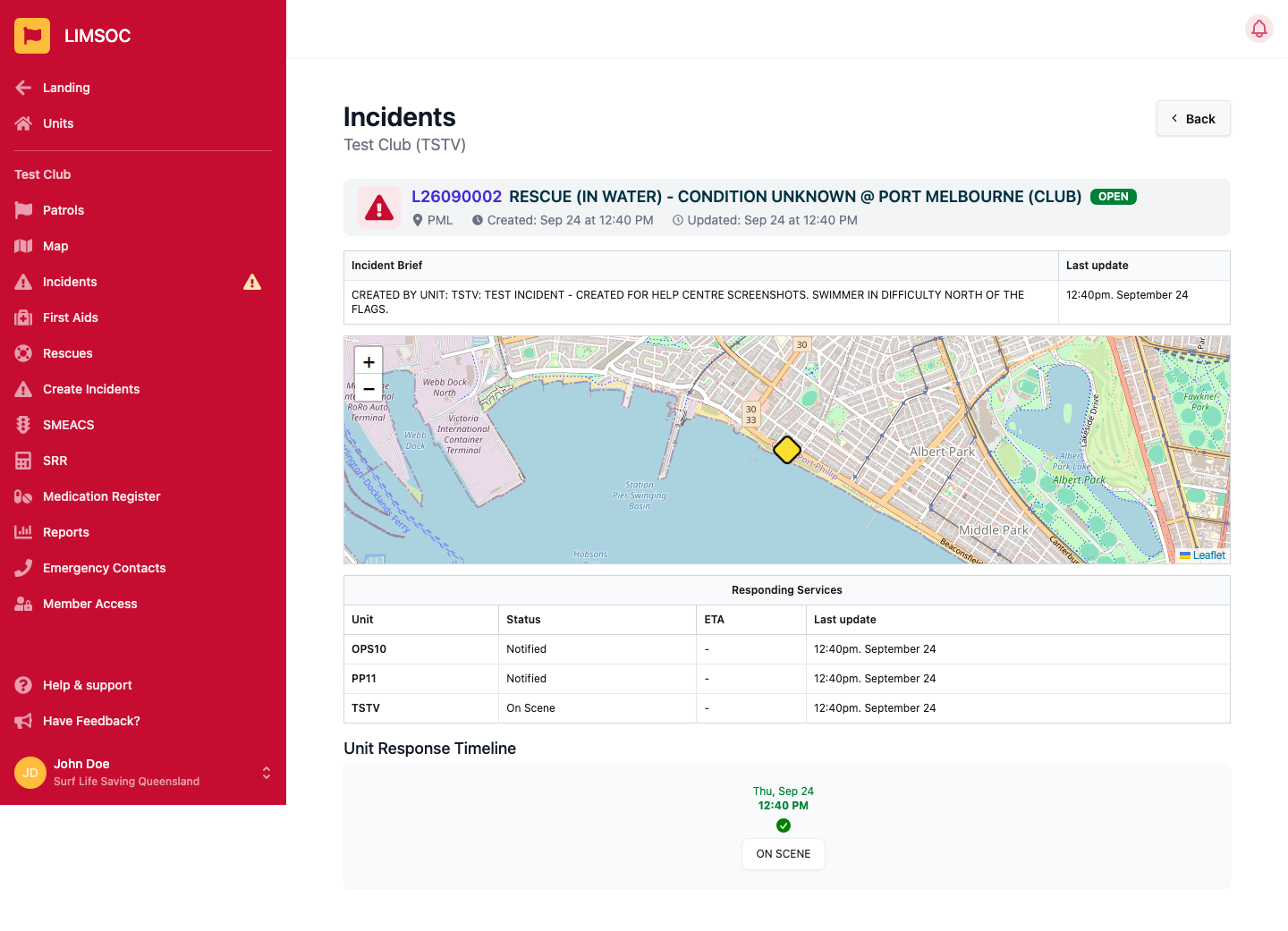
Click View Incident Details to see:
Incident Brief: the latest information from Surfcom, and when it was last updated
a map showing where the incident is
Responding Services: every other unit still attached, with its status, ETA (where known) and last update
Unit Response Timeline: your own unit's status history on this incident, latest in green
Statuses you'll see: Notified, Acknowledged, Monitoring, Standby, Enroute, On Scene, Returning, Stood Down and Cleared. Your unit's status is set by Surfcom, so talk to them on the radio if it needs changing. Once your unit is Cleared, the View Incident Details button no longer shows, but you can still open View Documents.
Flagging an incident for Peer Support
If members involved in an incident may need follow-up, tick Requires Peer Support on the incident card and confirm. This can't be undone once confirmed. Depending on your organisation's setup, you may instead see a Select incident tags... box, where some tags ask a short question for you to answer before saving.
When incidents drop off the list
Open incidents stay on your list. Once Surfcom closes an incident it stays visible, marked CLOSED, until midnight, then drops off. Get your paperwork done on the day. If you need to add or correct something on an older or closed incident, contact Surfcom.